
How to Add Your StreamerSuite Profile Code to Chaturbate
Learn how to copy your StreamerSuite-generated profile code and paste it into your Chaturbate bio to activate your custom profile design.
Your StreamerSuite profile code is a custom block of HTML that transforms your plain Chaturbate bio into a professionally designed profile page. Once it's added, visitors to your room will see your custom layout, branding, and links instead of the default bio text.
This guide walks you through copying your code from StreamerSuite and pasting it into Chaturbate in just a few steps.
Before You Start
Make sure you have:
- A StreamerSuite account with an active profile design
- Access to your Chaturbate account
- A few minutes to complete the steps below
Step 1: Copy Your Profile Code from StreamerSuite
- Log in to your StreamerSuite dashboard
- Navigate to Profile in the left-hand menu
- Find the Profile Code section
- Click the Copy Code button to copy your HTML code to your clipboard
Your code is unique to your account. Don't share it with anyone else.
Step 2: Open Your Chaturbate Profile Settings
- Log in to your Chaturbate account
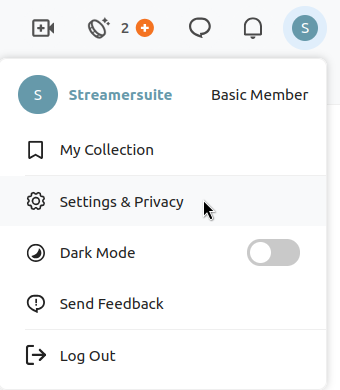
- Click your username in the top right corner
- Select Settings & Privacy from the dropdown menu (or click here to open the link)
Step 3: Select The Bio Tab
Once you are on your Settings page, look in to top left area at the tabs and click on the Bio tab.
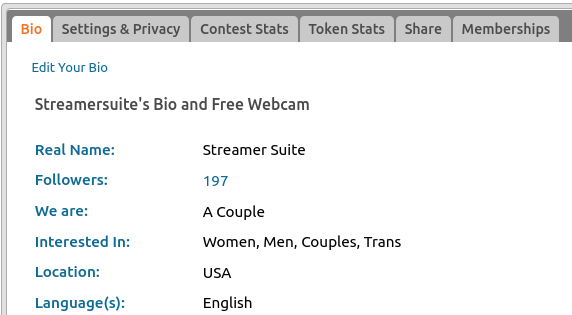
Then click on the text in the top left corner that says "Edit Your Bio"
Step 4: Paste Your Code into Your Bio
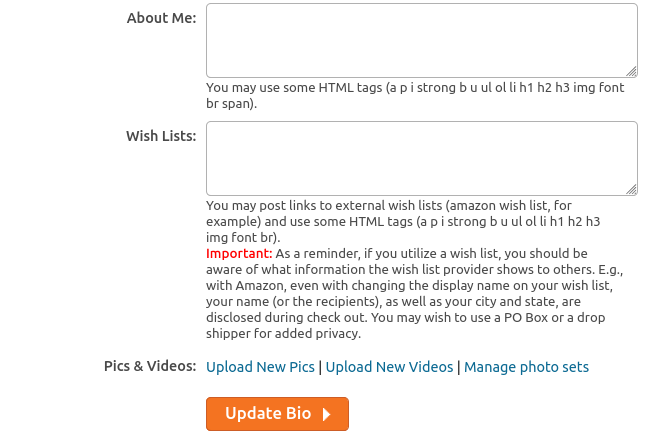
- Click inside the About Me text field
- Select all existing content and delete it — your StreamerSuite code will replace it entirely
- Paste your copied code using Ctrl+V (Windows) or Cmd+V (Mac)
Step 5: Save Your Profile
- Scroll down and click Update Bio to apply your changes

Step 6: Check Your Profile
- Open a new browser tab and go to
chaturbate.com/your-username - Scroll down to your bio section
- You should see your custom StreamerSuite profile design displayed
If it looks correct, you're all done.
Troubleshooting
My bio is showing raw code instead of a design Chaturbate may have HTML disabled on your account. This can happen on newer accounts. Contact Chaturbate support and ask them to enable HTML in your bio.
If you see the following text above your "Update Profile" Button, then you need to act on its instructions before you can have a custom bio design -
"You must purchase tokens or be age verified to add new photos and videos"

My profile looks broken or incomplete Make sure you deleted all existing bio content before pasting. Any leftover text or code can interfere with the layout.
I can't find the Copy Code button in StreamerSuite Make sure your profile design has been saved and published. If you're still having trouble, contact StreamerSuite support via the chat widget in your dashboard.
My changes aren't showing up Try clearing your browser cache or opening your profile in a private/incognito window to see the latest version.
Need Help?
If you get stuck at any point, our support team is here to help. Use the chat widget inside your StreamerSuite dashboard or email us at support@streamersuite.com.